How to · 3 min read
How to change your Android wallpaper with Paxpi
Learn how to change your Android wallpaper with Paxpi: find an image, preview it, set your home or lock screen, or save it to your gallery.
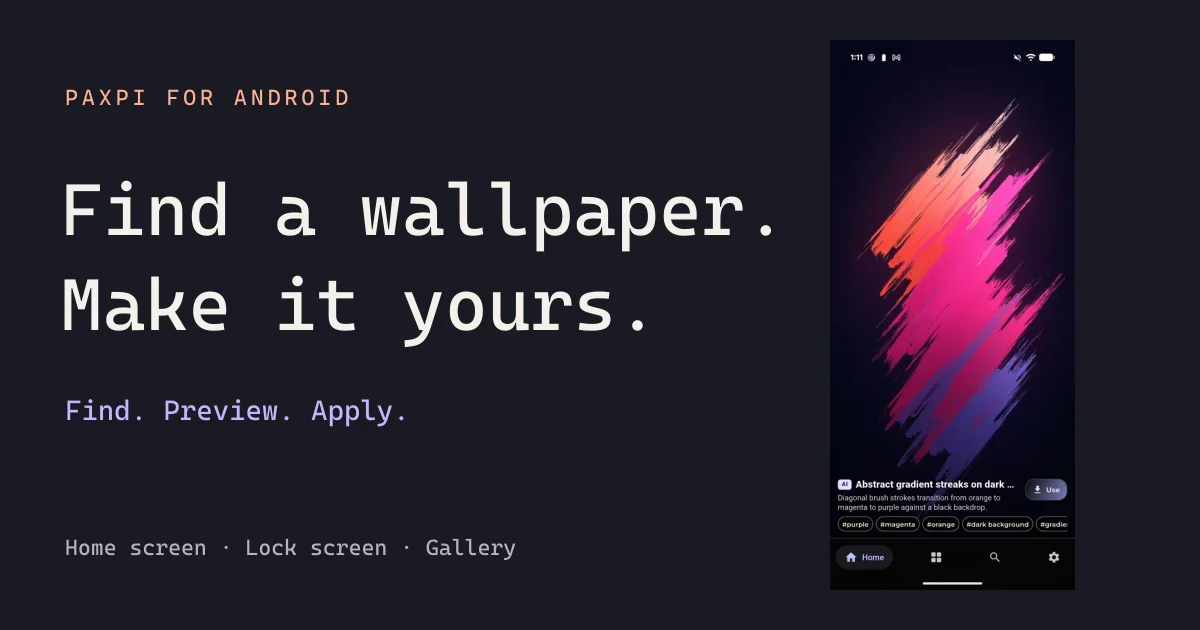
In Paxpi, choose an image, tap Use → Set as wallpaper, inspect the preview and select an available screen. To download instead, choose Use → Save image. Screen targets and preview controls depend on your Android device and launcher.
Start with an image you want to see every day
A wallpaper is one of the simplest ways to make a phone feel more personal. In Paxpi, you can swipe through artwork, explore collections and tags, or search for a style you have in mind. You do not have to settle on a permanent theme: try a quiet landscape today and a brighter abstract image another time.
This walkthrough follows Paxpi’s Android wallpaper flow. The final system preview and available home or lock screen choices can differ between phones, launchers and Android versions.
1. Find your wallpaper
Open Paxpi and browse the home feed. If you already have a direction, use Discover, collections, tags or search to narrow your selection. Look at the composition as well as the subject. A beautiful picture can feel busy when your icons sit over its most detailed area.
Before choosing, consider where the wallpaper will go. A lock screen often puts a large clock near the top; a home screen may have several rows of shortcuts. An image with a little open space can work well behind those elements.
2. Open the wallpaper actions
On the image you want, tap Use. The wallpaper actions let you apply the image or save it to your gallery. Choose Set as wallpaper to move into the wallpaper preview where supported by your device.
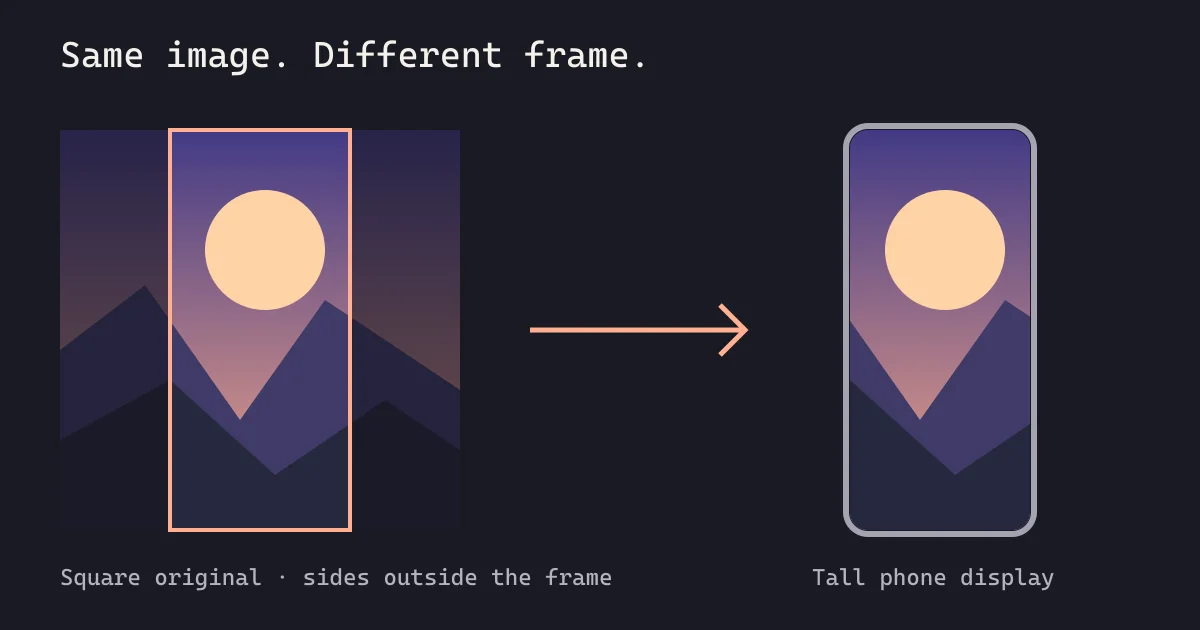
Inspect the preview before confirming. Pay attention to the image’s edges and the position of the subject. Your display may show a different crop from the full image you saw while browsing.
3. Choose your screen
Follow your phone’s wallpaper preview to apply the image. Depending on your device, you can select the home screen, lock screen, or both. If Paxpi reports that system preview is unavailable, use its direct-setting option and choose from the targets your device supports.
Want two different images? Apply the first to one screen, then repeat the process with the second image for the other screen. The exact choices and labels are controlled in part by Android and the device manufacturer, so not every phone presents an identical menu.
For Pixel’s system wallpaper settings, Google documents its own wallpaper customization flow. Other manufacturers may use different settings names.
Save an image for later
You can also tap Use → Save image. Allow the relevant media or gallery permission if Android requests it. Once saved, the wallpaper remains in your gallery until you remove it; it is separate from the app’s temporary image cache.
Saving is useful when you want to keep a few alternatives without changing your screen immediately. You can revisit the image through your device’s gallery or wallpaper picker.
If something does not look right
If applying fails, try the direct-setting option where available. For a failed save, check your connection, free storage and relevant Android permissions. If the image applies but its subject is cut off, read why wallpapers get cropped.
Still stuck? Contact Paxpi support with your app version, Android version and device model. Those details help distinguish an app issue from a device-specific wallpaper behavior.