Screen sense · 4 min read
Why your wallpaper looks cropped — and what to do about it
Why does Android crop your wallpaper? Understand aspect ratios, preview framing, and how to choose an image that fits your home and lock screens.
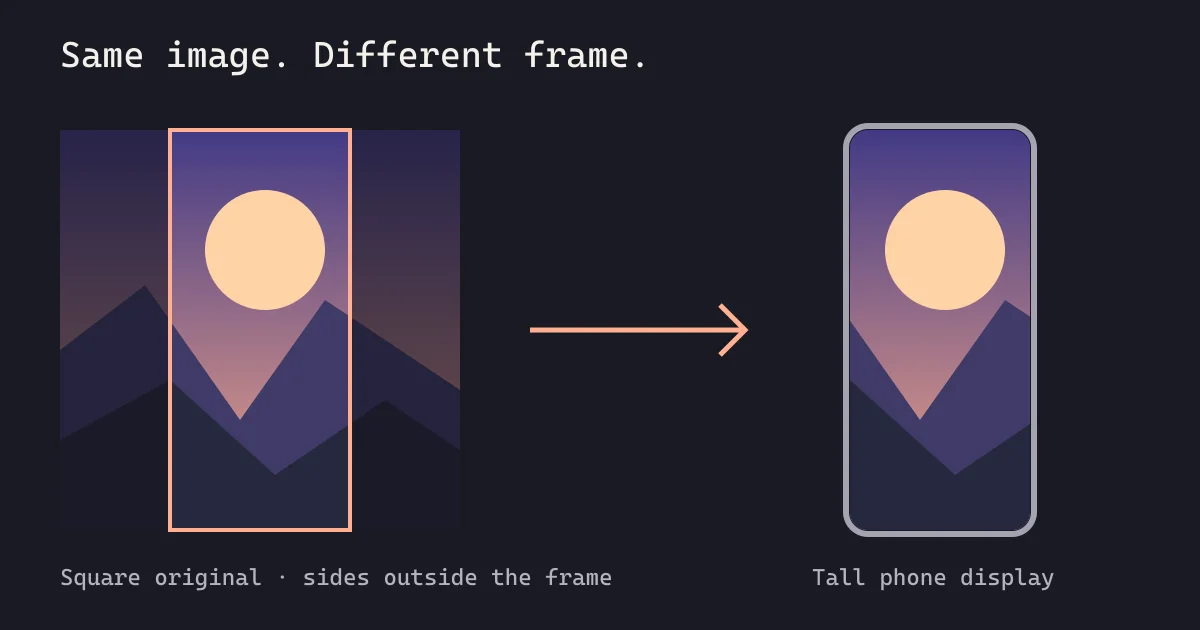
Android usually crops a wallpaper because the image and display have different aspect ratios. Choose a portrait image with space around the subject, check the system preview and reposition it where your device allows. More pixels can improve sharpness, but do not prevent cropping.
Your screen and your image have different shapes
An Android wallpaper can look complete in a gallery and cropped when it becomes a wallpaper. The reason is often its aspect ratio: the relationship between its width and height. A phone display is usually tall and narrow. A landscape photograph is often wide. Filling the display with that photograph means showing only part of it.
For example, imagine a square 2,000 × 2,000 image placed on a 1,080 × 2,400 display. To fill the full height without empty space, the image must grow taller than its original size. Its width then extends well beyond the display’s left and right edges. Enough pixels alone cannot make those different shapes match.
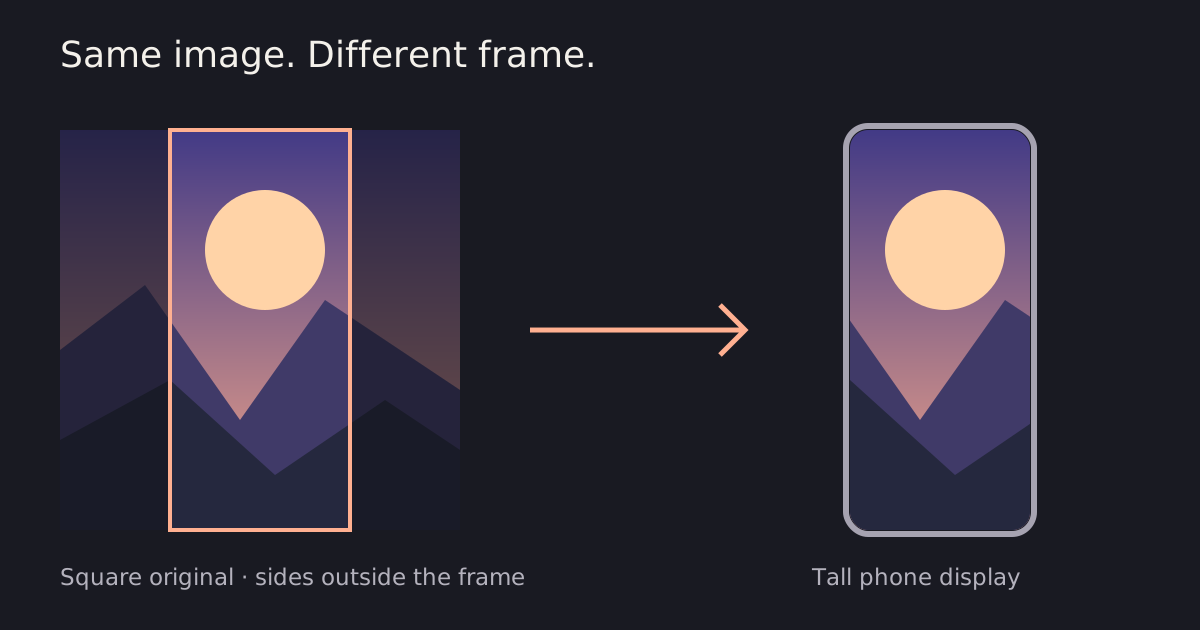
The illustration highlights the part of a square image visible when it fills a tall screen. The image keeps its proportions; the extra width falls outside the display.
Choose a composition with room around the subject
Portrait-oriented artwork is often easier to use on a phone, but its focal point still matters. A face positioned near an image’s edge may disappear in a centered crop. A mountain peak pressed against the top may clash with a clock or camera cutout.
Try images whose main subject sits closer to the center, with some breathing room around it. For landscapes, a tall scene with foreground, middle distance and sky can preserve its character even when the outer edges are cropped. For abstract images, broad shapes can be more forgiving than a small, precisely placed detail.
Think about the interface over the picture
A wallpaper is a background for another layer of information. Home screens have icons, labels and widgets; lock screens have a clock and notifications. The best crop in a blank preview may not be the most comfortable crop in everyday use.
Look for quiet areas behind important text. A slightly darker or simpler part of the image can give white labels more separation. Check the actual screen after applying rather than judging only the original picture.
Preview before you commit
Use Paxpi’s wallpaper action to open the available preview, then inspect the subject and edges before applying. Device wallpaper pickers and launchers may position or scale images differently. Follow the controls your phone provides; a repositioning option on one device does not guarantee the same option on another.
If you prefer to work through your phone’s own gallery or wallpaper picker, save the image first with Use → Save image. Google’s Pixel wallpaper instructions explain its system flow; consult your device manufacturer for other phones.
Try a different image, not just a bigger one
A higher-resolution version can help avoid softness when an image is enlarged, but it cannot restore a subject outside the chosen crop. Sometimes the useful change is a different composition, not more pixels.
Explore another image from the same collection: a wider horizon, a lower focal point, or fewer details near the edges. You can keep the color and mood you like while finding a layout better suited to your screen.
For the complete app workflow, see how to change your Android wallpaper with Paxpi. For ideas beyond screen fit, read about finding your wallpaper style.